PlanToCode Mobile
An iOS companion for staying close to desktop-owned agent work: choose the right Mac, switch projects and sessions, continue chat, browse files, review changes, and track reconnect state.
What the app makes visible
- The selected region, account state, desktop, connection health, and mobile access state.
- Project and session switching tied to the same desktop workspace, including imported Codex conversations.
- Workspace chat, queued outbox state, files, changed work, timeline evidence, and run status while away from the Mac.
- Reconnect state, notifications, and remote follow-up controls for desktop-owned work.
The phone connects to desktop-owned work.
Mobile is a control surface around the Mac, not a separate repository or isolated chat app. It keeps the desktop-authoritative model clear while you review.
Choose region, account, and desktop
Pick the US or EU server, sign in with the supported account providers, discover available desktop clients, and pick the computer that owns the session.
Switch projects and sessions
Move between active repositories, recent sessions, searchable session lists, running indicators, and newly imported Codex conversations without needing to be at the computer.
See connection health
Keep connected, reconnecting, disconnected, and offline states visible while desktop remains responsible for repository access, command execution, run records, and durable session state.
Check the evidence before you respond.
The mobile surface helps you understand what happened, not just send another message into a hidden agent run.
Continue workspace chat
Send follow-ups to the active session, stop generation, use reasoning/speed/access/model options, preserve queued outbox state, and keep context attached to the same desktop thread.
Browse files and folders
Use the Directories tab to search, refresh, browse tree or flat project files, open full-screen previews, and attach desktop files to chat.
Review changes
Use the Changes tab to load desktop Git detail, inspect changed files, open patch detail, and review work-in-progress updates before approving or redirecting.
Inspect timeline evidence
Read file references, patch actions, command rows, thinking blocks, active runs, sandbox or approval state, and run updates from the mobile timeline.
Capture visual review
Record voice notes, capture screenshots, send the walkthrough to Gemini, and keep the returned analysis attached to the review flow.
Use advanced terminal views
When exposed by the desktop context, terminal views support live output, input, resize, reconnect, detach, and kill controls without making terminal the primary mobile tab.
Keep the remote path understandable.
Mobile is most useful when the app keeps connection state, relay health, and follow-up controls visible while desktop owns the work.
Connection state
See connected, reconnecting, disconnected, and offline states without turning recovery into a separate workflow.
Reconnect-aware control and notifications
Keep reconnect status, relay health, and push notification categories visible enough that remote control does not feel mysterious.
Quick voice or text follow-up
Use the phone for short instructions, direct dictation submit, transcript paste, or retry/error recovery while full repository context stays on desktop.
Slots for real walkthroughs and screenshots.
These placeholders reserve the product moments that need real videos or current screenshots as release materials are produced.
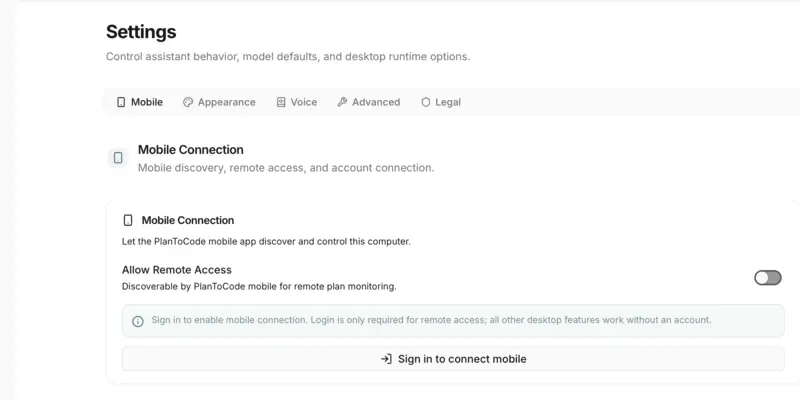
Connect to a desktop
Show server selection, account sign-in, desktop discovery, and mobile access status.
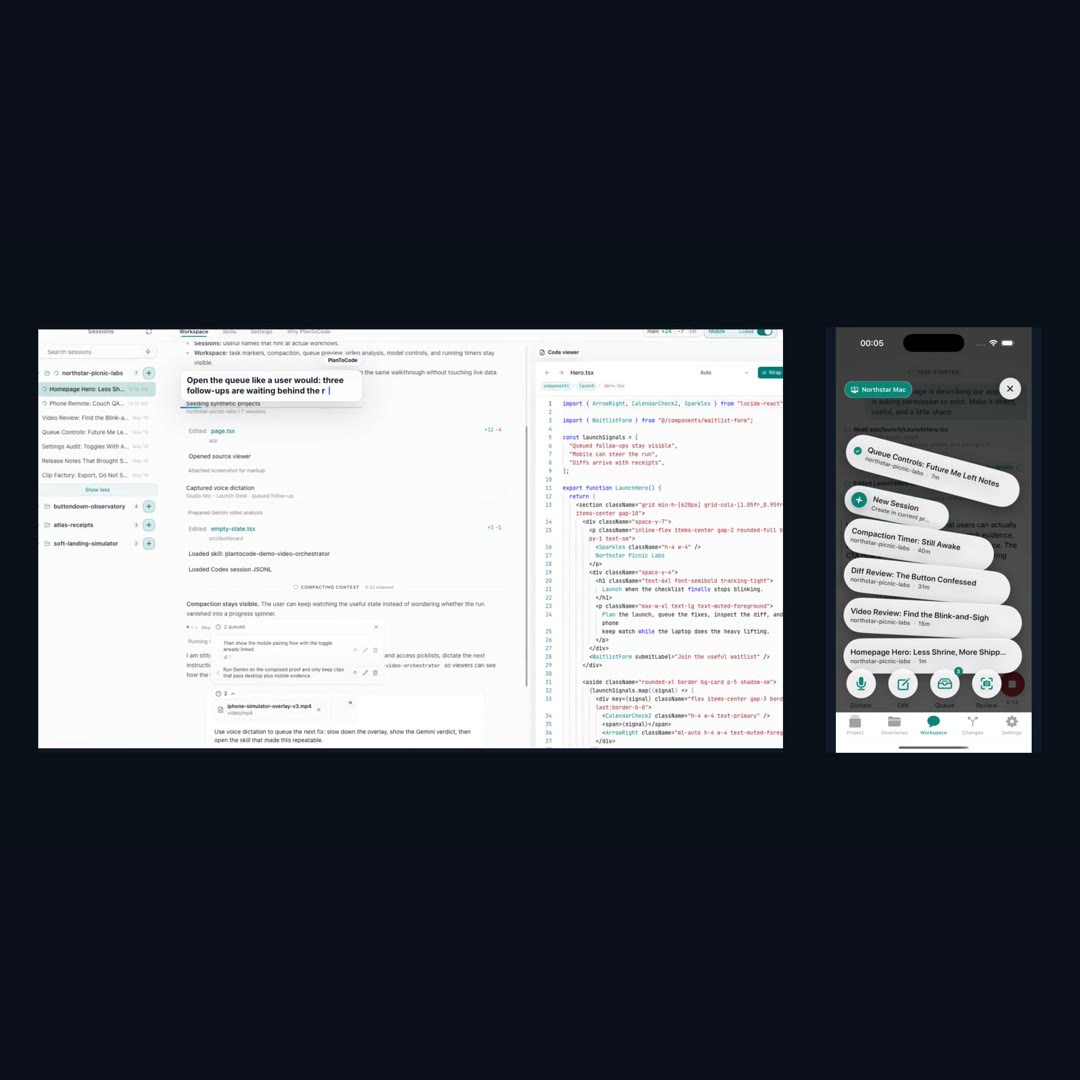
Session switcher
Capture project and session switching from the phone.
Mobile file review
Show source browsing and change review connected to the desktop run.
Remote follow-up
Show reconnect state and the user sending a quick follow-up from iPhone.